



The editing interface
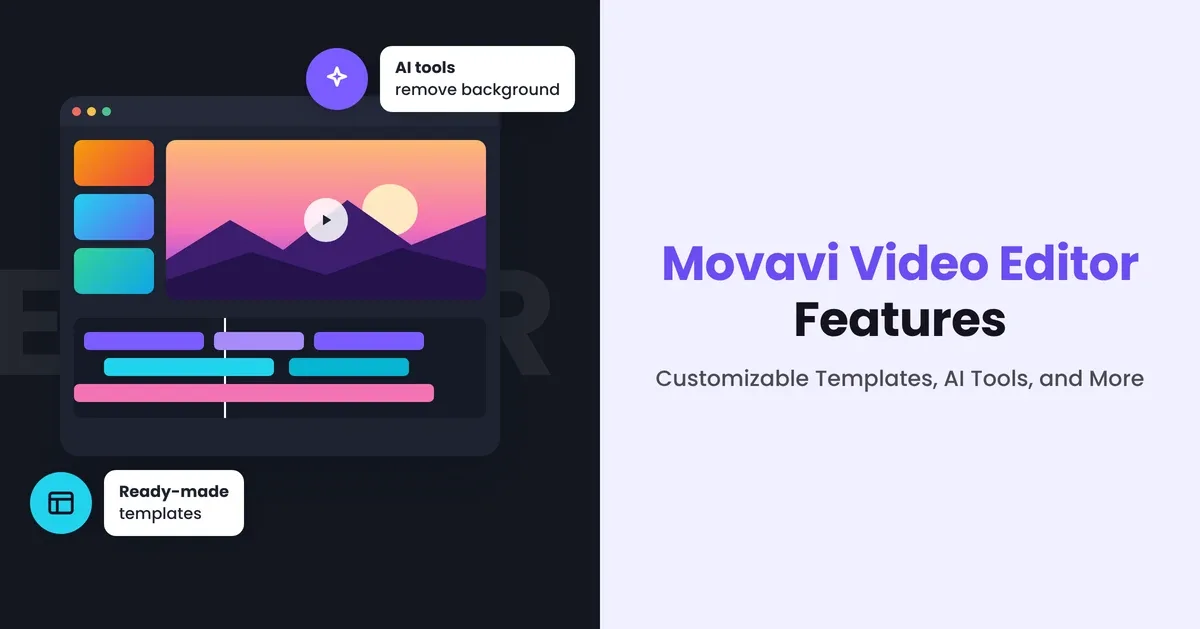
The first screen is calm: you get your media files on one side, a preview window on the other, and a timeline underneath with separate tracks for video, audio, overlays, and text. New users also see small hints that point to the next step.
Almost everything works by drag and drop: put clips on the timeline, pull a transition between two shots, drop a filter onto a clip. Hover over an effect first and it plays on your footage, so you can see it before deciding. Clips snap together without gaps, and you can set markers on the timeline to come back to a moment later. You'll probably feel comfortable with all of this by the end of your first project.
Core video editing tools
The basic tools sit where you'd expect them, and they react quickly. Movavi Video Editor covers the usual editing jobs:
● Frame-accurate cuts with the Blade tool
● Trimming, reordering, and cropping clips
● Rotating, flipping, and straightening footage
● Speed changes from 0.01x up to 100x
● Reverse playback, freeze frames, and scene detection, which splits a long video wherever the shot changes
Pre-timeline trimming is worth a special mention. Suppose you recorded a 40-minute interview and want one two-minute answer from it. You can select those two minutes before anything goes on the timeline, so the project only contains the part you need.
Movavi Video Templates
Templates are the part of Movavi we'd recommend trying first. Movavi Video Templates is a multi-style library of customizable, pro-looking, modular templates for any kind of video.
A typical video template is one finished sequence. You replace the footage and keep the structure, even if the intro is too long for your clip. Movavi splits each template into Blocks instead. A Block is a short pre-edited piece, like an intro, a countdown, a run of quick cuts, or an animated collage, and it already has its transitions, music, and text. You add your clips and photos, and that part of the video is finished.
From there, the template is yours to change. You can delete a Block, move it to another spot, or add one from a different template. Some Blocks have a Design tab where you can switch the color scheme, and the text can take a new font or color. If you'd rather not start from a template at all, you can build a whole video out of separate Blocks. Each Block keeps its own pacing and music, so rearranging them doesn't break the edit, and a first project can still look professionally made. Anything you want to adjust by hand stays on the regular timeline.
Templates are sorted into categories such as Vlog, Travel, Gaming, Food and cooking, Holidays and family, Jobs and business, and Marketing and promo. There are ones for YouTube intros and outros, birthday and wedding videos,
photo slideshows, product promos, video resumes, and portfolios. The full version comes with several templates, and the rest of the library is available with a Movavi Templates subscription.
One-click AI tools
Typing subtitles by hand or cutting out every pause takes ages. Movavi Video Editor's AI tools do these jobs in one click.
Auto subtitles turn speech into captions in more than 100 languages. There are over 60 caption designs, and word highlighting makes each word light up as it's spoken, the style you see all over Shorts and Reels. AI video denoise cleans up grainy footage from dark rooms or older phones and keeps faces and edges sharp. AI audio noise removal deals with traffic, wind, and fan hum while leaving the voice clear. Silence removal cuts the pauses out of a recording, which saves a lot of time on interviews, lessons, and podcast-style videos; you can change the pause length and volume threshold if the automatic result feels too tight.
For vertical video, auto-tracked cropping reframes a horizontal clip and follows the speaker or product so they stay centered. AI background removal replaces what's behind a person without a green screen. AI motion tracking pins text, an image, or a sticker to a moving object.
None of these tools use credits: with the full version, you can run them on as many videos as you like.
Transitions, filters, and visual effects
The built-in library has hundreds of built-in effects, and they're simple to use: a few drag-and-drops are enough to give a plain clip a professional look. Transitions go from plain fades to glitches and twirls, and each one has an adjustable duration. You can even put the same transition between every clip at once, with a single click.
Filters include color tones, retro looks, blur, light leaks, and textured overlays. Most come with a single intensity slider. You can apply one filter to several clips together, and Movavi also accepts LUTs, including your own .cube files.
The Movavi Effects subscription goes further, with more than 10,000 effects and 1,500 music tracks. Any of them can be tried on your own video for free, and you can even save the result with a watermark before you buy.
Color correction
Fixing color doesn't take technical skills here. Pick a preset for a quick improvement, or change brightness, contrast, saturation, temperature, tint, highlights, and shadows yourself. When a look works, save it as a preset. For a YouTube series, this keeps every episode looking consistent.
Titles, text, and animated typography
Titles are one of Movavi's strongest features for people who aren't designers. Choose an animated style, type your text, and change the font, color, outline,
or background. Lower thirds, callouts, stickers, frames, and countdown timers are all in the library.
A title you plan to reuse, such as one with your channel name, can be saved as a preset. Text can follow a moving object with motion tracking, and the animation tool has a keyframe mode if you want to animate position, size, rotation, or opacity on your own.
Audio editing features
You can record a voiceover straight onto the timeline or pull the sound out of a video clip. Volume can be set per clip or drawn as a curve. Fades and crossfades soften the changes between tracks, and normalization evens out loud and quiet parts.
The more detailed tools include an equalizer, a compressor, a noise gate, and reverb. Beat detection marks the beats in a music track so your cuts can follow the rhythm. If you don't want to touch any settings, Sound autocorrect has one-click presets for things like voice recordings and noisy rooms. Together with the AI noise removal, that's enough for most videos without another app.
Stabilization, chroma key, and other handy tools
Stabilization smooths out handheld footage, and you can change its accuracy and smoothing settings. Pan and zoom adds slow camera movement to photos and wide shots. Highlight and conceal blurs a face or a license plate, or darkens everything except the part of the frame that matters.
The chroma key tool removes green or blue backgrounds, with controls for tolerance, noise, and edges. It works best when the background is lit evenly. If there is no green screen, the AI background removal that’s been mentioned before handles videos with people in them.
Movavi Ideas
Coming up with something to make isn’t always easy, and Movavi Ideas helps with that. It's a free tutorial hub with editing tricks for Movavi Video Editor users, updated every week.
Every idea starts with a preview of the result, then a step-by-step tutorial that takes less than a minute to follow. The collection includes jump cuts, split screens, countdown timers, animated reactions, and stylized intros, with themes like vlogs, vertical clips, business videos, holidays, memes, and more. Beginners can follow one and get an eye-catching video on the first try, and experienced creators will find new tricks to borrow.
Performance and hardware acceleration
Movavi doesn't ask much of your computer. It needs 4 GB of RAM and runs on Windows 10 and 11 (64-bit) and macOS 12 or later, with native support for ARM-based processors on Mac, including Apple M1 and newer devices. Hardware acceleration works with Intel, NVIDIA, and AMD graphics. Fast Track HD lets you edit lighter copies of HD footage and switches back to the original files on export, which keeps playback smooth on a mid-range or older laptop.
Export options and presets
Exporting takes a few clicks. You can:
● Save video as MP4, MOV, AVI, MKV, WMV, WebM, and other formats, with your own resolution, aspect ratio, and quality settings
● Export just the audio as MP3, WAV, or FLAC
● Make an animated GIF from a short clip
● Use presets for phones, tablets, game consoles, and TVs
● Upload straight to YouTube, TikTok, Vimeo, or Google Drive
Before you start, the export window shows an estimated file size. You can also export just one section of the timeline for a teaser or a quick preview.
Plans and pricing
● The free version has no time limit and includes the essential editing tools along with auto subtitles, auto crop, and silence removal, and you can try every other tool too. Its exports are limited to 60 seconds, carry a watermark, and are saved at lower quality (1080p max).
● Lite includes all the built-in effects and the core tools, auto subtitles, auto crop, and silence removal. Exports have a small watermark, and some advanced tools aren't included.
● The full version unlocks every feature and AI tool, with no watermark or export limits. It comes with hundreds of effects and several templates, and you can pay for it monthly or annually.
● Movavi Effects and Movavi Templates are optional subscriptions on top, for the complete effects and template libraries.
Prices change with seasonal promotions, so check the official Movavi website for current offers.
Your top video editing assistant is here for you
Movavi Video Editor suits beginners and everyday creators. A YouTuber can put together intros and vlogs, a small business can make product promos and social ads, a teacher can prepare lessons, and a family can turn holiday footage into a birthday video. Editors who need the advanced, detailed controls of professional post-production will be better served by a heavier tool. For everyone else, the easiest next step is to download the free version, try a template with your own clips, and see how good the result looks.


