



Why Google Account Verification Matters More in 2026
Google accounts are valuable. They hold email, photos, payment details, saved passwords, and access to third-party apps through “Sign in with Google.” That value makes them a target for spammers and attackers.
To fight abuse, Google uses risk-based verification. The checks you see depend on signals such as your device, network, location, and how many accounts were recently created from the same place. A sign-up from a familiar Android phone may pass with little friction, while one from a shared computer may trigger extra steps.
Understanding this logic helps. Verification is not a judgment of you personally. It is an automated estimate of risk.
The Standard Sign-Up Process
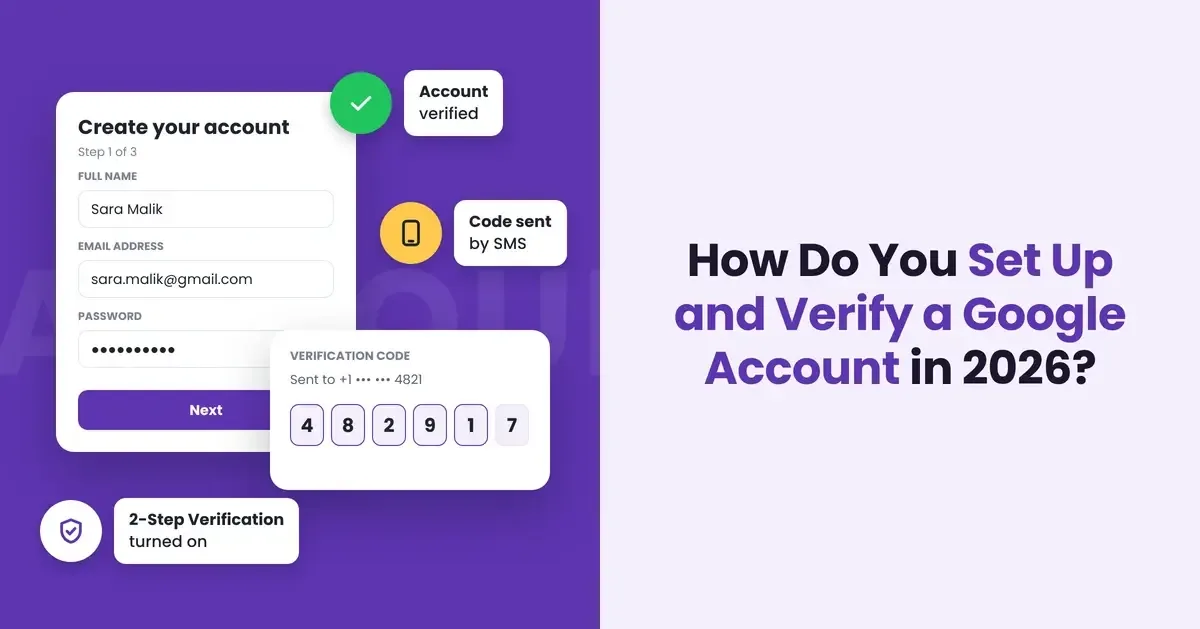
Creating an account still starts at the familiar sign-up page or from the setup screen of a new Android device. You will typically be asked for:
- Your first and last name
- Date of birth and gender (gender can be kept private)
- A Gmail address or an existing email address you already use
- A strong password, or the option to create a passkey
Google then decides whether more verification is needed. In many cases, that means confirming a phone number by SMS code. Your number can later be used for account recovery, though you can control whether it is used for other Google services in your account settings.
Phone and QR Code Verification Explained
In recent years, many users have noticed a newer prompt: scanning a QR code with a smartphone. Instead of typing in a code you received, you scan the code with your phone’s camera, which then sends a verification message from your device. This makes it harder for bots to fake the step, because it ties the sign-up to a real phone and mobile network.
For most people this is quick. For others it causes real problems. You might not own a smartphone, your camera might be broken, your carrier may not support the message, or you may be setting up an account for a business team on desktop machines only.
Alternatives When a Verification Step Blocks You
If the QR prompt appears and you cannot complete it, you still have options. Starting the sign-up on an Android phone or through the Gmail app often results in a simpler SMS check. Using a trusted home network rather than public Wi-Fi or a VPN can also lower the perceived risk. Some users find it helpful to read a detailed walkthrough on how to create a Google account without scanning a QR code, which covers practical approaches step by step.
Other legitimate routes include signing up with an existing non-Gmail address, or asking a Google Workspace administrator to create the account if it is for work or school. Whatever you choose, use accurate details. Fake information makes recovery much harder if you ever get locked out.
Securing Your Account: 2-Step Verification and Passkeys
Once your account exists, protecting it should be the next priority. Google now encourages, and in many cases requires, 2-Step Verification. Common second factors include:
- Google prompts on a signed-in Android phone or iPhone
- Google Authenticator or another authenticator app generating time-based codes
- Hardware security keys that follow the FIDO standard
- Backup codes stored somewhere safe offline
Passkeys go further. A passkey replaces your password with a cryptographic key stored on your device and unlocked by your fingerprint, face, or screen lock. Passkeys are resistant to phishing because they only work on the real Google site. They sync through Google Password Manager across Android and Chrome, and work on other platforms as well.
A sensible setup in 2026 is a passkey for daily sign-ins, Google Authenticator or a security key as a backup, and up-to-date recovery phone and email details.
Privacy Settings Worth Reviewing
Security keeps others out. Privacy controls what Google itself collects. Spend ten minutes in the Google Account dashboard reviewing these areas:
- Privacy Checkup: a guided tour of your main settings
- My Activity: where you can view and delete Web & App Activity, Location History, and YouTube history
- Auto-delete: set activity to delete after 3, 18, or 36 months
- Third-party connections: remove apps you no longer use
- Ad settings: limit personalized advertising
Google’s Security Checkup is also worth running regularly. It flags unfamiliar devices, weak or reused passwords, and risky app access.
Common Mistakes to Avoid
A few habits cause most account problems:
- Skipping recovery options, then losing access to the only phone on file
- Reusing a password from another service that was breached
- Approving sign-in prompts you did not start
- Creating many accounts quickly from the same device, which can trigger suspensions
- Ignoring security alerts sent to Gmail
Avoiding these keeps your account stable and reduces the chance of extra verification later.
Conclusion
Setting up a Google Account in 2026 is still straightforward for most people, but verification has become smarter and sometimes stricter. Phone checks and QR code scanning help Google block automated abuse, though they can frustrate genuine users without the right device. Knowing the alternatives makes the process smoother. After sign-up, turn on 2-Step Verification, add a passkey, keep Google Authenticator or backup codes ready, and review your privacy settings. Those few steps protect your Gmail, files, and connected services, and give you long-term control over one of your most important online accounts.