



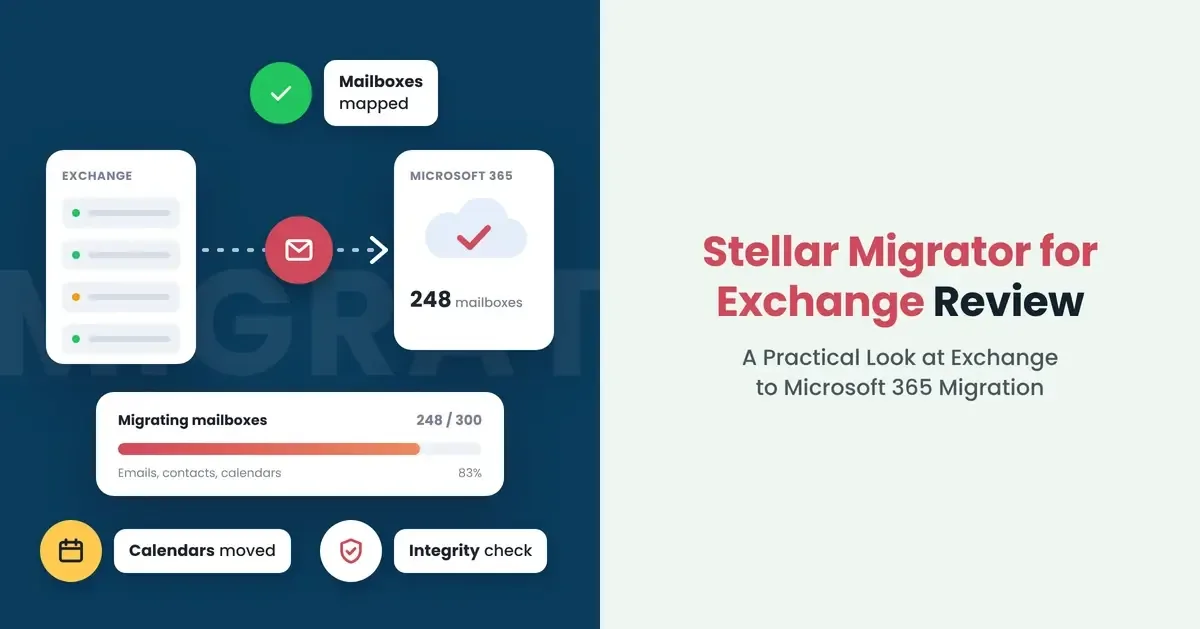
A customer migration project gave me an opportunity to try Stellar Migrator for Exchange and evaluate its capabilities for moving mailbox data from an on-premises Exchange Server to Microsoft 365.
Rather than focusing solely on the product features, I wanted to see how this Exchange Migration tool handled the migration tasks and observe it from an administrator’s perspective during an actual migration flow.
First Impressions:
Getting started with Stellar Migrator for Exchange was fairly straightforward and the interface was user friendly. After the installation, I connected my on-premises Exchange server and Microsoft 365 Tenant by authenticating with my admin accounts.
One thing which caught my eye was the interface. Which doesn’t try to overwhelm users with options. Instead, it was easy to understand even for someone with no prior experience using the tool.
Most of the migration tasks are laid out in a logical sequence, so figuring out where to begin wasn’t a difficult task. Once the migration job has been created, the process workflow moved through the expected stages,
- Sign in to the licensing server
- Pick the source and target
- Connecting to Exchange Servers
- Connecting to M365 Tenant
- Mailbox Discovery & Mapping
- Configuring migration options and
- Review the job summary, Start the Migration job
The overall process was well organized and didn’t require me to refer the documentation during entire migration job, which is usually a good sign. The workflow felt familiar and easy to follow, particularly for administrators who have previously worked with Exchange Migrations.
- Sign in to the licensing server:
After registering, you get an email with the installer link and licensing-portal credentials. The app shows how many mailbox licenses you have left before you build a job. You can also continue without login. Next click on “Create Job”.
- Pick the source and target:
Choose source and target server types, and pick mailbox types: primary/shared, archive, or public folders. You can also import a CSV of pre-mapped mailboxes here.
- The type of mailboxes for migration (Primary, Archive, Shared mailboxes or Public Folders)
- Connecting to Exchange Servers:
Once the source Exchange server was connected, the software quickly populated the list of available mailboxes. Stellar Migrator for Exchange also has an option to import the csv file which contains the mailbox mappings. For migration projects involving a larger number of users, this will be very handy where manual verification can be become time-consuming.
- Connect Microsoft 365:
"Auto registration" signs you in as a Global Admin and creates the Azure AD (Entra ID) app for you, then checks EWS and Microsoft Graph access. "Manual registration" takes the client ID, tenant ID and client secret of an app you registered yourself. The software quickly populated the list of available target mailboxes.
- Mailbox Discovery & Mapping:
From there, I was easily able to select the mailboxes I wanted to migrate and review the proposed mappings to M365 mailboxes before proceeding with the mailbox migration.
Stellar Migrator for Exchange does a wonderful job in mapping the source and destination mailboxes automatically based on the associated email addresses, which reduced the amount of manual work required. For any unmatched mailboxes, I was able to map them manually as needed.
- Configuring migration options:
During the process of creating the migration job, we have options to select
- Configure date range of mails to be migrated
- Exclude folders that aren’t required
- Schedule the migration for the weekend to reduce the downtime.
- Stellar Migrator for Exchange also gives admins an option to control the migration concurrency, which can be useful when balancing performance according to available system and network resources.
- Review the job summary, Start the Migration job
I liked the fact that these options were available to admins without making the setup process feel complicated. Whether you’re migrating a handful of mailboxes or planning a larger project, the controls provide enough flexibility to adjust the migration according to the requirements of the environment.
Migration Performance:
For testing, I migrated a mailbox containing a mix of email messages, folders, calendar entries, contacts, and messages with larger attachments.
Once the migration started, most of my attention was on the progress dashboard to see how the job was progressing. The status updates were refreshed regularly, making it easy to track migrated items and identify anything that was skipped during processing.
The Stellar Migrator for Exchange remains responsive and provided real-time visibility into mailbox status, migrated items and any skipped content throughout the migration.
Like any Exchange migration, performance will vary from one environment to another. Factors such as mailbox size, network connectivity, source server health, Microsoft 365 service responsiveness, and migration settings can all influence the overall migration time.
However, I didn't notice any unusual spikes in CPU or memory usage, and the migration server remained usable for other administrative tasks. The software delivered consistent performance and completed the migration without requiring manual intervention.
Reporting & Monitoring:
One thing which I was constantly checking during the testing was the migration dashboard. As mailboxes were processed, I could see the current status, completed mailboxes, migration statistics, and items that required my attention.
After the migration finished, I could clearly see the skipped / failed items along with the reason for failure and re-run the job to fix it. For consultants, MSPs, and administrators, being able to quickly identify failed items and retry them from the same interface saves time during validation.
What I Liked:
After spending sometime with Stellar Migrator for Exchange, here are few things that stands out.
- The workflow is easy to follow and doesn’t require much time to get familiar with.
- Mailbox discovery and automatic mailbox mapping saved time during the setup.
- The ability to filter mailbox data and schedule migration jobs provides flexibility. For example, archive mailboxes can be migrated during business hours while primary mailbox migrations can be scheduled during weekends to minimize user impact.
- Delta migration support can be useful for the organizations planning for phased migrations or move the skipped items.
Areas for Consideration:
Even though the migration was smooth with Stellar Migrator for Exchange and there were no major issues, there are few things that should be considered before even starting the migration project.
- Migration performance varies based on local environment conditions
- Admins still need appropriate permissions on both Sources and Destination.
How much does it cost?
Stellar Migrator for Exchange is priced per mailbox, and the rate drops as you buy more. The smallest pack is 25 mailboxes for $250 ($10 each). From there it falls to $7 per mailbox at 50 ($350), $5 at 100 ($500), $4 at 200 ($800), $3.70 at 300 ($1,100), $3.30 at 400 ($1,350) and $3 at 500 ($1,500). Beyond 500 mailboxes, Stellar prices on request. Licenses are counted by the number of source mailboxes you migrate, and purchase orders are accepted. A free trial covers 2 mailboxes, so you can test it on your own servers before you buy.
Final Thoughts:
By the end of the migration, I had completed mailbox move and confirmed the mailbox data in Microsoft 365 without running into anything unexpected. This was probably the biggest takeaway for me.
Stellar Migrator for Exchange software did what it was designed to do, and the migration progressed without any unexpected issues during testing.
While every migration environment is different, my overall experience with the product was positive. Based on this testing, I would be comfortable using it again for future Exchange to Microsoft 365 migration projects.


