



What Is the ChatGPT Video Generator on Pollo AI?

Pollo AI integrates GPT models into its creative platform, allowing users to work with GPT directly to turn ideas, scripts, and references into videos. Through the ChatGPT Video Generator, creators can describe what they want in a conversation, provide an existing ChatGPT script, and develop it into a video without manually assembling every scene.
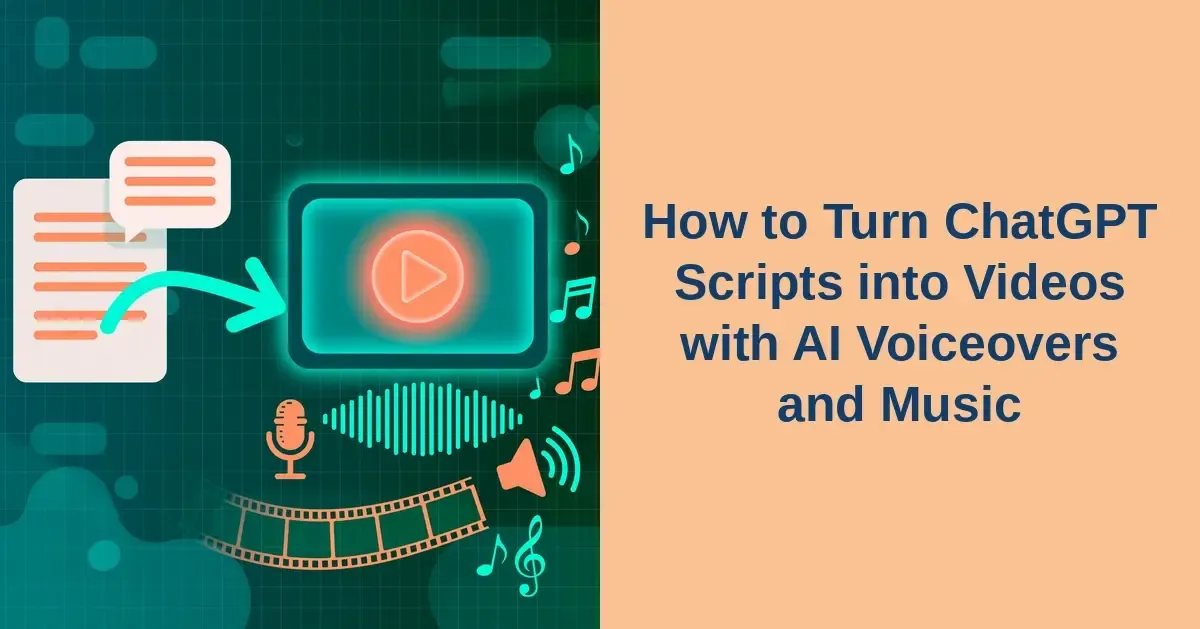
The tool handles much of the production process. It analyzes the supplied content, breaks the script into scenes, and brings the visuals together with AI voiceovers, subtitles, and background music. This makes it possible to create different types of content, from narrated tutorials and product promotions to an AI music video, without switching between separate tools for visual generation and audio editing.
Voiceovers can be customized by gender, language, accent, speaking style, and age. For background music, users can choose AI-generated tracks, browse curated options, or upload their own audio. The tool also supports 9:16 vertical and 16:9 widescreen formats, making it useful for everything from TikTok and Instagram Reels to YouTube explainers and product videos.
How to Turn ChatGPT Scripts into Videos with AI Voiceovers and Music
Step 1: Get the ChatGPT Script Ready
Start with a script that works as spoken content, not just written copy. Long paragraphs and complicated sentences can sound awkward when read aloud, so it's worth tightening the wording before uploading.
For example, a skincare creator could prepare a 60-second script covering a product introduction, three key benefits, and a closing message. A TikTok storyteller might prefer a shorter script with a strong opening and a clear ending.
A simple structure with distinct sections also makes it easier to turn the script into individual scenes.
Step 2: Submit the Script to the ChatGPT Video Generator
Open the ChatGPT Video Generator on Pollo AI and submit the prepared script through its chat interface.
The tool also accepts images, links, briefs, and other references. These can be useful when the video needs to feature a particular product, character, or visual style. For instance, an online seller could provide a product image alongside a promotional script to give the AI more context.
The tool then analyzes the material, picks out key moments, and organizes them into a sequence of scenes.
Step 3: Review the Scenes and Choose a Format
Once the content has been analyzed, the tool asks questions and presents proposed scenes, sound, and format options for confirmation.
Take a moment to check whether the visuals actually match the script. A tutorial about using a mobile app, for example, needs scenes that illustrate the relevant actions, not generic visuals that have little to do with the instructions.
The aspect ratio should also fit the publishing platform. Choose 9:16 for TikTok and Instagram Reels, or 16:9 for standard YouTube videos and presentations. Getting this right early can save extra work when preparing the final video.
Step 4: Choose and Customize the AI Voiceover
A voiceover should fit both the subject and the audience. The tool lets users adjust voice gender, language, accent, speaking style, and age.
A calm, clear delivery generally suits educational content, while a more conversational voice may work better for product introductions and social media videos. Creators targeting international viewers should also consider whether the selected accent is easy to understand.
Listen to the generated narration before moving on. Product names, technical terms, numbers, and abbreviations are worth checking carefully, as pronunciation mistakes can make an otherwise polished video feel unreliable.
For videos featuring talking characters, Pollo AI also provides an AI lip-sync tool to help synchronize mouth movements with dialogue.
Step 5: Add Music and Check the Finished Video
Music can make a video feel more complete, but it shouldn't drown out the narration. Users can choose AI-generated music, browse curated tracks, or upload their own audio files.
The right soundtrack depends on the content. A product demonstration usually needs something subtle, while a short story may call for music that reflects its mood.
Before downloading, watch the video from beginning to end. Check that the scenes match the script, subtitles are readable, narration is clear, and music sits comfortably in the background.
If something looks off, users can request changes to individual scenes, assets, captions, or creative directions without rebuilding the whole project. Once everything looks right, the finished video can be downloaded.
Tips for Better ChatGPT Script-to-Video Results
1. Write the way people speak. Short sentences and natural transitions make voiceovers easier to follow. A script that reads well on screen doesn't always sound right when narrated.
2. Be specific about visuals. Mention relevant subjects, locations, colors, and styles when submitting the brief. Clear references give the AI a better idea of what the finished video should look like.
3. Keep music in the background. The soundtrack should set the mood without competing with speech. This matters especially for tutorials, product explanations, and educational videos.
4. Don't skip the final review. AI-generated scenes may not always represent the script accurately. Check visual details, subtitles, pronunciation, and audio timing before publishing.
Conclusion
Turning a ChatGPT script into a finished video doesn't have to mean recording narration and editing every scene by hand. The ChatGPT Video Generator on Pollo AI brings script analysis, scene creation, AI voiceovers, and background music into one workflow.
It's worth considering for creators who regularly turn written content into YouTube explainers, TikTok videos, tutorials, or product promotions. The key is still to review the generated scenes and audio carefully before publishing.


