




Whether you want to do a reverse image search, find where a photo came from, or shop using pictures, the right techniques make all the difference.
So I put together this guide to show you exactly how image search works. You'll learn the different types of searches, the best tools to use, and how to get accurate results every time.
Let's get started.
What Is Image Search and Why Does It Matter?
Understanding Image Search
Image search lets you find information using pictures instead of typing keywords. Whether the image comes from your camera, a design tool, or an AI coloring page generator, modern search engines can analyze its visual characteristics to find similar content. You upload a photo or paste an image URL, and the search engine returns visually similar results.
The process is simple: you can upload an image, use a camera, select part of an image or screen, or combine an image with text, depending on the search product. You then refine the results based on what the system identifies and the context of your query.
Behind the scenes, modern visual-search systems use computer vision and multimodal AI to interpret objects, text, colors, shapes, relationships and broader scene context. The exact pipeline differs by product, so there is no single universal image-search algorithm or processing sequence.
If you upload a photo of an unknown plant, the search engine looks at its fur texture, shape, and color patterns. Then, it finds similar images for you. Many of those results will include the plant's name in their descriptions.
How Image Search Differs from Text Search
Text search matches keywords and phrases against indexed content. You type words, and the engine finds documents containing those words.
Image search works differently. It analyzes visual characteristics rather than text. The system compares features from your uploaded image against billions of stored images in its database.
This creates a major advantage: image search is language-agnostic. You don't need to know the right terms. If you see a lamp at a hotel and want to buy it, you can photograph it and search without knowing the brand or model.
But there are trade-offs. Image search doesn't always provide precise results. The algorithms sometimes misinterpret details. They also struggle with context and intent, providing results based solely on visual similarities without considering associated text.
Image search can be useful when the object or visual characteristics are easier to communicate with an image than with keywords. Use specific performance statistics only when the study, sample, metric, and date can be cited.
As a fun experiment, try downloading a few coloring pages from PowColoring and use them in different reverse image search engines. You may be surprised by how many visually similar variations and related illustrations each search uncovers.
Why Image Search Is Essential in 2027
Visual search has grown substantially. Google reported that Lens was used for nearly 20 billion visual searches per month in 2024, after previously reporting more than 12 billion per month in 2023.
Google Search can surface image results for many queries, but the percentage depends on the query set, device, market, and measurement method. Do not use the 38.4%, 74%, and 81% figures without the original study and methodology.
Visual search is particularly useful for people who can communicate an object or product more easily with a picture than with words.
Visual search can support product discovery and shopping workflows, but its business impact varies by implementation, product category, traffic source, and user intent.
Image search has become essential for product discovery, photo verification, finding original sources, and object identification. As visual content dominates online spaces, knowing how to search with images gives you a significant advantage.
How Does Image Search Work?
The Technology Behind Image Search
Modern image-search systems generally combine image understanding, retrieval and ranking, but they do not all follow the same fixed five-step pipeline.
First, you submit an image by uploading a file, pasting a URL, or capturing it through your phone camera. The engine makes the input consistent. It adjusts the size, color profile, and orientation. This ensures all images are processed the same way.
Second, the image goes through feature extraction. A deep learning model looks at data in different ways. First, it examines low-level features like edges and colors. Next, it checks mid-level features such as shapes and textures. Finally, it focuses on high-level features like recognizable objects or text.
Third, the model creates an embedding: a numerical representation of the image that can be compared with other image representations. The dimensionality depends on the particular model and is not universally fixed at 512–2,048 values.
Fourth, the search engine compares your embedding against billions of pre-computed embeddings stored in a specialized vector database. It uses approximate nearest neighbor (ANN) algorithms. Exact comparisons are too slow.
Finally, a search system may rank or re-rank candidate results using additional signals. The exact signals and pipeline vary by product and search engine, so metadata, page content, freshness, and user context should be treated as examples rather than a universal ranking formula.
From Pixels to Patterns: AI and Computer Vision
Computer vision equips machines with the ability to process, analyze, and interpret visual inputs such as images and videos. It uses machine learning to help computers derive meaningful information from visual data. For businesses, AI SEO services can help adapt SEO strategies to how AI-powered search systems understand and process content.
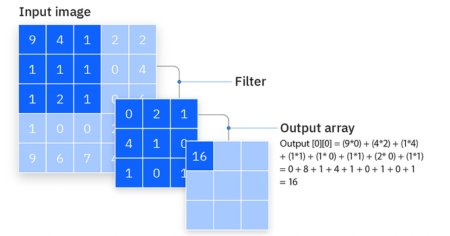
An image is treated as a matrix of pixel values. When the system processes it, filters move across the image to extract features through a process known as convolution. Each filter responds to specific patterns like edges, shapes, or textures, allowing the system to learn multiple visual features simultaneously. Modern systems now use deep learning models such as ResNet and VGG, similar to technologies used in Image Recognition Software that identify objects, patterns, and visual context within images
Image Algorithms: SIFT, SURF, and CNNs
SIFT and SURF are important traditional feature-based methods for image matching. Modern visual-search systems increasingly rely on learned representations from deep neural networks, including CNN-based and transformer-based vision models. Vision Transformers (ViTs) treat images as patches or tokens and can learn richer semantic representations. The specific architecture used by a commercial search engine is generally proprietary.
But Convolutional Neural Networks (CNNs) now dominate image processing. CNNs learn features through filter optimization and have become the standard in computer vision. Vision Transformers (ViTs) apply transformer architecture to images, treating them as sequences of patches.
Vector Embeddings and Cosine Similarity
Image search converts pictures into embeddings, which are mathematical fingerprints. This embedding captures the meaning of the image, not its exact pixels.
Systems can compare image representations using similarity measures such as cosine similarity, but the exact retrieval and ranking method depends on the platform and model. Similar representations generally indicate related visual or semantic content.
This explains why image search can find a picture even if it's been cropped, recolored, or resized.
Types of Image Search Techniques in 2027
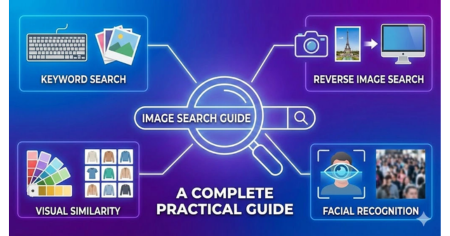
Different scenarios need different image search techniques. Here's what each one does and when to use it.
Keyword-Based Image Search
This is the simplest method. You type words into Google Images or Bing, and results appear based on metadata, tags, captions, and alt text. The search engine scans indexed images and matches your text query with stored information.
For instance, typing "sunset mountains" shows natural scenes. But "minimalist office desk setup with laptop" gives more precise results than just "desk".
Best for general searches, blog content, and concept visuals.
Reverse Image Search Techniques
Instead of typing, you upload a picture or paste an image URL. The system creates a digital fingerprint for your image and compares it against billions of indexed images.
This technique helps trace image sources, verify copyright, and check factual accuracy. For example, journalists use it to verify if viral photos are authentic by finding out when they first appeared online.
TinEye specializes in tracking exact copies, while Google and Yandex find visually similar results even when cropped or resized.
Visual Similarity Search
This goes beyond exact matches. It finds images with similar layout, texture, or patterns. The system analyzes colors, textures, and shapes using deep learning.
Upload a modern living room photo and get similar interior designs with matching furniture styles. Fashion and eCommerce industries rely heavily on this.
Object Recognition
Object recognition identifies specific items inside images. Machine learning detects vehicles, animals, household items, and products.
Take a picture of a chair and get product listings, similar designs, and purchase links. The technology works through deep learning models like CNNs that learn object features by analyzing thousands of training images.
Facial Recognition
This maps facial features and compares them with stored data to identify possible matches. Clearview AI currently states that its database contains 70+ billion publicly available images and that its system is 99%+ accurate across demographics; these are Clearview's own claims and refer to specified testing conditions. Modern AI face recognition software has made this process faster and more accurate than ever before. Some face visual search engines, such as eyematch.ai, Yandex, are known for strong facial recognition capabilities.
Law enforcement, media verification, and social media tagging use this technology. Yandex provides highly advanced face recognition, particularly effective in non-Western datasets.
Color and Pattern-Based Search
You filter images based on dominant colors, gradients, or tones. Shutterstock's Palette uses patent-pending algorithms with image data and search queries to determine unique color palettes.
Designers and brand managers use this to maintain visual consistency across campaigns.
Metadata-Based Image Search
Images can contain metadata such as filenames, camera information, dates, location data, and other fields. What a search engine uses and how it uses it varies by platform. For Google Images, page content, captions, filenames, alt text, and other signals can help Google understand an image.
Source: Google's image SEO best practices
Photos tagged with specific location and date information appear in relevant searches even without keywords in the image itself.
Context-Based Image Search
This analyzes surrounding text, website content, and user intent instead of just visuals. The same laptop image on a tech blog gets categorized as technology, but on a shopping site, it's categorized as a product.
Context removes ambiguity. The query "apple" from a fruit website clearly means the fruit, not the company logo.
Hybrid Multimodal Image Search
Hybrid multimodal image search combines text and images in one query. Instead of choosing between typing words and uploading photos, you do both.
Here's how it works in practice. You search for a shirt with an abstract pattern using text. Results appear, but they're too diverse. So you pick one image that matches your style and run an image-to-image search. Now, the results are narrowed down to visually similar shirts.
But you want something more specific. You select that image and add text like "desert color pattern and long sleeves". The system searches both modalities together and returns exactly what you need.
When to Use Each Image Search: Your Decision Guide
Not every technique works for every situation.
Here's when to use what. Think of it like a cheat sheet.
KEYWORD-BASED SEARCH
Use this when: You know what you're looking for.
Best for: Blog content, design inspiration, general searches.
Time needed: 2-5 minutes.
Example: You want sunset photos for a travel blog. Type "mountain sunset golden hour." Boom. Results appear.
REVERSE IMAGE SEARCH
Use this when: You found an image and want to know more.
Best for: Checking if something's real, finding the source, catching stolen images.
Time needed: 1-3 minutes.
Real-world example: A journalist gets a viral photo. They reverse-search it. Turns out it's from 2015, not yesterday. They don't publish fake news.
VISUAL SIMILARITY SEARCH
Use this when: You love how something looks and want similar stuff.
Best for: Fashion, interior design, finding inspiration.
Time needed: 5-10 minutes.
Example: You see a modern couch on Pinterest. You search visually. Boom. Ten similar couches pop up in different colors and stores.
OBJECT RECOGNITION
Use this when: You want just one part of an image, not the whole thing.
Best for: Shopping, product hunting, finding exactly what you see.
Time needed: 1-2 minutes.
Example: A photo shows a living room. You love the lamp on the side table. Use object recognition. It finds that exact lamp. You buy it.
FACIAL RECOGNITION
Use this when: You need to identify a person or check if someone's real.
Best for: Verifying identity, catching fake accounts, security checks.
Time needed: 1-2 minutes.
Example: The HR team checks if someone's LinkedIn photo is actually them. They reverse-search the photo. If it's stolen, they know immediately.
COLOR-BASED SEARCH
Use this when: You need a specific color palette.
Best for: Designers, brand managers, maintaining visual consistency.
Time needed: 2-3 minutes.
Example: A company wants all marketing images to use blue and gold. They search by color. Every image matches the brand.
PATTERN-BASED SEARCH
Use this when: You want designs or textures, not exact objects.
Best for: Textile design, graphic design, finding visual patterns.
Time needed: 3-5 minutes.
Example: A fashion designer wants geometric patterns. They search for "geometric wallpaper." The system finds thousands of similar patterns. They pick their favorite.
MULTIMODAL SEARCH (IMAGE + TEXT)
Use this when: You need something really specific.
Best for: Shopping, product discovery, when one method isn't enough.
Time needed: 3-5 minutes.
Example: You find a shoe you like. But you want it in blue and under $80. Upload the image + add text: "blue version under $80." Results? Perfect match.
Pro move: This is the future. Use it when you want precision.
Best Image Search Tools and Platforms IN 2027
Choosing the right tool depends on what you need to find. Here's what each platform does best.
Google Images and Google Lens
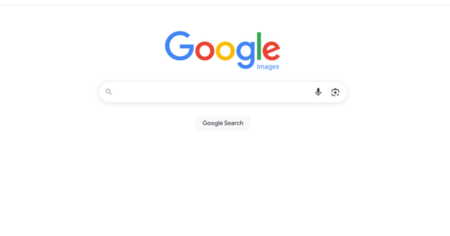
Google said in 2023 that Lens handles over 12 billion visual searches monthly. You can search what you see with your camera, upload a screenshot, or long-press any image while browsing.
The multisearch feature lets you combine images and text. Snap a photo of shoes and add "blue" to find that exact style in your preferred color. You can also photograph a dish and add "near me" to locate restaurants serving it.
Translation works in real-time across 100+ languages. Point your camera at text, and Lens overlays the translation directly on your screen. The homework help filter provides step-by-step solutions for math, history, and science problems.
TinEye for Exact Match Detection
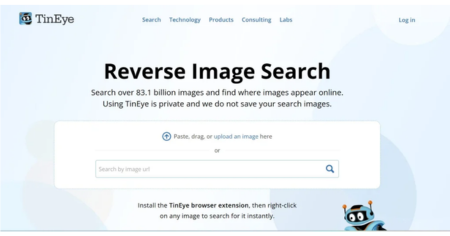
TinEye is the original reverse image search engine. It specializes in finding exact copies of images, including different sizes, crops, and edited versions.
Upload any photo, and TinEye traces where it appears online. This helps verify copyright, find image sources, and locate higher-resolution copies. Browser extensions are available for Chrome, Firefox, Edge, and Opera.
Yandex Images for Face Recognition
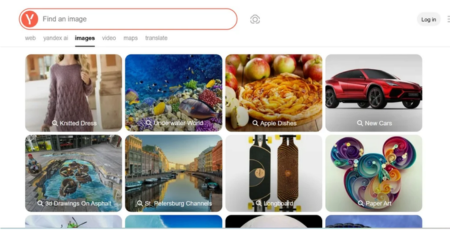
Avoid using an exact indexed-image count here unless Yandex publishes a current, verifiable figure. The size and composition of an image index can change over time.
Yandex Images can be useful for visual and image-matching searches, but claims about superior facial-recognition performance or dataset coverage should not be presented as established facts without current independent evidence.
Bing Visual Search for Shopping
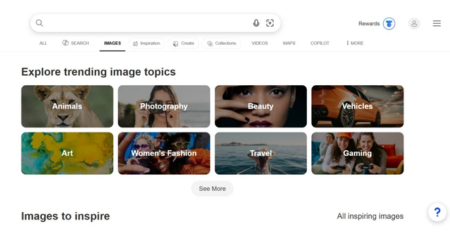
Bing Visual Search uses AI to identify objects, plants, animals, and landmarks. You can crop specific areas of photos to see live results.
Upload furniture or fashion photos to instantly find where to buy similar items, plus pricing options. The AI chatbot lets you ask questions about uploaded images using natural language.
Pinterest Lens for Creative Discovery

Pinterest continues to emphasize visual discovery. In September 2026, Pinterest said users conduct more than 80 billion searches per month and that the vast majority are visual. Point your camera at ingredients to discover recipes, or photograph streetstyle to find matching items.
The object search technology identifies items within images and returns scenes containing visually similar objects. Results aren't just visually similar but also semantically relevant.
Lenso AI for Advanced Recognition
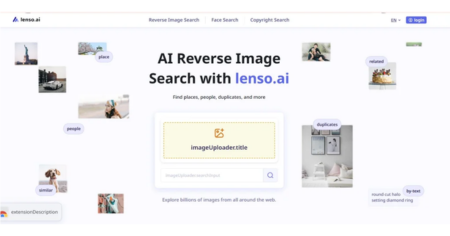
Lenso uses Content-Based Image Retrieval (CBIR) to find photos online without keywords. Search categories include people, places, duplicates, and similar images.
The facial recognition feature calculates distances between facial features to match identical faces across different expressions. Research Mode provides access to 10,000 results for people and duplicate searches. Advanced filters let you sort by page language, domain, date range, and image size.
QUICK BREAKDOWN
| Tool | Best For | Why Use It | Watch Out For |
|---|---|---|---|
| Google Images | Everything | Huge database, super fast | Sometimes finds similar stuff, not exact matches |
| TinEye | Finding exact copies | Tracks edits and resizes | Smaller database than Google |
| Bing Visual Search | Shopping & objects | Great at spotting items in photos | Index smaller than Google |
| Pinterest Lens | Inspiration & design | 100 billion ideas on the platform | Not for fact-checking or verification |
| Yandex Images | Face recognition | Excellent at finding faces | Less global coverage |
| Shutterstock | Licensed images | All copyright-safe | Costs money |
| Lenso AI | Detecting stolen content | Great for brand protection | Newer, still improving |
IMAGE SEO: HOW TO RANK YOUR IMAGES IN SEARCH ENGINES
Here's the thing most people miss: finding images is only half the battle.
If you create images, you need to know how to make them rankable. You want Google Images to show your photos. Not someone else's.
So let me walk you through it. Simple stuff. Nothing fancy.
1. Name Your Files Right (Seriously, This Matters)
A descriptive image filename can help search engines understand the image subject, but it is only one contextual signal.
Bad example: IMG_5847.jpg
Good example: black-leather-running-shoes-women.jpg
A descriptive filename gives useful context, while generic names such as IMG_123.jpg provide little descriptive information. Keep filenames concise, descriptive and relevant to the page.
Google's algorithm reads file names. If your file says "IMG_123," the system has no clue what's inside. Name it clearly, and Google understands immediately.
Pro tip: Use hyphens, not underscores. Avoid spaces and unnecessarily generic filenames
2. Add Alt Text (Your Secret Weapon for image seo)
Alt text is the description you add to images. It helps two things:
People with vision problems who use screen readers
Google's search system figures out what your image shows
Bad alt text: "Image of shoes"
Good alt text: "Black leather running shoes with white sole for women"
Write like you're describing it to a friend. Be specific. Mention color, material, size, use case.
Google can use alt text along with page content and computer vision to understand an image. More importantly, useful alt text supports accessibility. Write it naturally and describe the image when the image conveys meaningful information; do not stuff keywords.
3. Compress Without Losing Quality
Big image files slow down your website, and resizing images correctly for speed and SEO can make a significant difference in your rankings. Slow websites don't rank as well.
So compress your images. But don't destroy the quality.
Target sizes:
Mobile images: 70-100 KB
Desktop images: 150-300 KB
Use free tools like TinyPNG or Squoosh. They shrink file size without making your image look bad.
Fast pages get better rankings. Simple as that.
4. Use Schema Markup for image seo (The Tech-y Part)
Add structured data only when it accurately describes the page and meets Google's guidelines. Structured data can help Google understand content and may make a page eligible for supported search features, but it is not a guarantee that an image will rank higher.
Is it a product? A recipe? A news photo?
Add schema markup, and Google gets it instantly. Your image ranks better.
Example for a product image:
<schema>
"image": "https://example.com/running-shoes.jpg",
"name": "Black Leather Running Shoes",
"price": "$89.99"
</schema>
(Don't worry if this looks like tech gibberish. You can use tools like Google's Structured Data Helper to create it.)
5. Keep Images Consistent (Builds Trust)
Use the same colors. Same style. Same vibe across all your images.
Why? It builds recognition. Your brand becomes recognizable.
When someone sees your images, they should think, "Oh, that's them."
Consistent visual design can strengthen brand recognition and user experience, but do not claim that visual consistency by itself is a Google image-ranking factor.
6. Make Images Responsive
Your images need to look good on phones, tablets, and computers.
Use the <picture> tag in HTML. It automatically shows the right image size for each device.
Mobile users see a smaller, faster image. Desktop users see the full version.
Everyone's happy. Google ranks you higher. Responsive images can reduce unnecessary downloads and improve the experience across devices. Do not treat responsive image implementation as a guarantee of higher rankings.
7. Put Text Around Your Images
Google reads the words around your image. It uses that context to understand what the image is about.
Don't just drop an image randomly. Add a paragraph before or after.
Example: "Running shoes are essential for comfort. The black leather option works for almost any activity. Here's our top pick this year."
[INSERT IMAGE HERE]
"These shoes combine style and performance. Customers love the cushioning. They last for years."
See how the text explains the image? Google sees this and ranks your image better.
8. Use Mobile-First Thinking
Make sure your images work well on mobile and desktop. Responsive sizing, appropriate compression, and a layout that avoids unexpected movement help provide a better experience.
Test them. Make sure they load fast. Make sure they look good.
Slow pages can create a poor user experience and can affect page experience signals. Optimize image delivery as part of the overall page-performance strategy rather than assuming one image issue automatically causes a ranking loss.
How to Use Image Search Effectively
Why it matters: Using images without permission can get you sued. Really. It happens.
What: Always upload sharp, bright images. Avoid blurry or dark photos.
For more practical tips on finding and identifying images online, check out these image search techniques, including reverse image search methods and tools for finding similar or original images.
Open Google Images and click the camera icon in the search bar. You have three options:
Drag and drop an image file directly into the search box
Upload by clicking "Choose file" and selecting from your device
Paste an image URL from any website
On mobile, tap the Google Lens icon in the search bar. Take a photo or upload one from your gallery. Drag the corners of the selection box to focus on specific parts.
How to Search for Something Using a Picture
What: Don't just search for "bag." Search for "red leather handbag with gold chain."
Snap a photo of something you want to identify. Upload it through Google Lens. The system highlights what it recognizes and shows similar results.
Right-click any image while browsing and select "Search with Google Lens". This works faster than downloading and re-uploading.
Image Search Best Practices (WITH REASONING)
Practice #1: Use Clear, High-Quality Images
What: Always upload sharp, bright images. Avoid blurry or dark photos.
Why it matters: Image algorithms analyze tiny details. Edges. Textures. Patterns. If your photo is blurry, the system can't read these details. Result? Bad matches.
Think of it like talking to someone in a loud room. They can't hear you clearly. You've gotta speak up. With images, you've gotta be clear.
Practice #2: Be Specific With Keywords
What: Don't just search for "bag." Search for "red leather handbag with gold chain."
Why it matters: Vague keywords give vague results. Specific words give specific results. That's how search works.
A restaurant doesn't say "food." They say "Italian pasta restaurant near downtown." Same idea.
Practice #3: Use Multiple Tools
What: If one tool doesn't work, try another. Google, TinEye, Yandex. Different tools, different databases.
Why it matters: Each platform has different indexed images. What Google misses, TinEye might find. Yandex might nail facial recognition.
It's like asking different friends for advice. They all have different perspectives. You get better answers when you ask many people.
Practice #4: Check Filters Before Searching
What: Look for filters. Size. Color. Date. Usage rights. Use them.
Why it matters: Filters narrow results instantly. Without them, you wade through hundreds of bad matches.
Are you looking for recent photos? Filter by date. Need copyright-free images? Filter by usage rights. Simple but powerful.
Practice #5: Go Mobile-First
What: Use Google Lens and camera apps on your phone. Point. Snap. Search.
Why it matters: Real-time search is faster than desktop. Plus, Google favors mobile-first searching now.
Walking through a store and seeing something you like? Snap a photo. Search instantly. That's the future.
Practice #6: Always Check Copyright
What: Before using any image, check if you can legally use it.
Why it matters: Using images without permission can get you sued. Really. It happens.
Stock platforms can provide licensed images, but the specific license terms still apply. Free image sites also have their own license conditions. Check the license before publishing, modifying, or commercially using an image; attribution may or may not be required.
The legal and financial consequences of unauthorized image use vary by jurisdiction and circumstance. Focus on checking the license and permission requirements.
Practice #7: Use Reverse Search for Brand Protection
What: If you're a business, regularly reverse-search your own images.
Why it matters: People steal images. They use them without permission. Reverse search helps you catch this.
Find out where your images appear. Make sure people credit you. Protect your brand.
It's like checking if someone's using your name without permission.
Practice #8: Test Across Platforms
What: Try Yandex for faces. Try Bing for objects. Try Google for general searches.
Why it matters: Different tools. Different results. You find more options. Better verification.
Testing takes five extra minutes. But you get way better results. Worth it.
Real Case Study with Metrics
The Problem: No One Could Find Products
Meet Sarah. She runs an online fashion store.
Her products are beautiful. But here's the problem: customers couldn't find them using text search.
Why? They didn't know the product names.
A customer would see a shirt on Instagram. They'd come to her site. Type random search terms. Nothing comes up. They leave. Frustrated.
Sarah was losing sales. She knew something had to change.
The Solution: Visual Search Feature
Sarah decided to add visual search. Customers could now upload screenshots. Or take photos. The system would match products instantly.
Cost? About $2,000 in development. Plus $300/month in hosting.
The Results (After 3 Months)
- Bounce rate dropped from 65% to 42% (23-point drop)
- Conversion rate jumped from 1.5% to 2.1% (+40%)
- Average session time increased by 31%
- Customer support requests cut in half (fewer "Can't find product" emails)
Why? Because customers no longer needed exact product names. They just uploaded a photo. Found what they wanted instantly.
What Sarah Learned
"Visual search wasn't a nice-to-have. It became essential."
She also learned that mobile mattered most. 70% of searches came from phones. One change: optimized the mobile experience first.
The takeaway? If you sell products online, visual search isn't optional anymore. It's expected.
Real-Life Problems Image Search Solves
Problem #1: Not Knowing The Product Name
You see shoes online. Love them. But you have no idea what brand or model they are.
Solution? Take a photo. Reverse search. Find the exact shoe. Buy it.
Problem #2: Catching Fake News
A photo goes viral. Everyone shares it. But is it real?
Solution? Reverse-search the photo. See when it was originally posted. In what context? Truth comes out.
Problem #3: Protecting Your Images
You're a photographer. Someone uses your photo without permission.
Solution? Reverse search your own work. Track where it appears. For businesses, learning how e-commerce brands can protect their brand online takes this protection even further. Send takedown notices. Protect your business.
Problem #4: Finding Inspiration
You're a designer. You see an interior design you love. Want something similar.
Solution? Visual search. Find comparable designs. Different colors. Different stores. Inspiration library grows.
Problem #5: Verifying People Online
Someone messages you. Claims to be a professional. But is that really them?
Solution? Reverse search their profile photo. See if it appears elsewhere. Catch fakes and scams.
Problem #6: Finding Cheaper Alternatives
You see a product. The price is too high. Want something cheaper.
Solution? Visual search. Find similar products. Different sellers. Better prices. Same look.
HOW TO AVOID COMMON MISTAKES
Mistake #1: Using Blurry Photos
Why it fails: Algorithms can't read details. You get bad matches.
Fix: Use sharp, well-lit photos. Bigger is better. Higher resolution is better.
Mistake #2: Trusting One Tool
Why it fails: Different platforms find different things. One tool misses results; the other finds.
Fix: Try multiple tools. Google, TinEye, Yandex. Compare results. You get a fuller picture.
Mistake #3: Ignoring Filters
Why it fails: Filters exist for a reason. Without them, you scroll forever. Lots of junk results.
Fix: Use filters. Size. Color. Date. Usage rights. Get better results faster.
Mistake #4: Using Vague Descriptions
Why it fails: Vague = vague results. "Car" gives thousands of cars. All useless.
Fix: Be specific. "Black SUV 2022 model with sunroof." Now the results are useful.
Mistake #5: Not Checking Copyright
Why it fails: Using images without permission can cost you legally. Big fines. Lawsuits.
Fix: Check licenses. Buy from Shutterstock if needed. Always give credit. Play it safe.
Mistake #6: Ignoring Image Context
Why it fails: The same image means different things in different places. A laptop is a product in a store. It's tech on a blog. Context changes everything.
Fix: Think about where you found the image. Why is it there? What the context is.
Quick Reference Table: When to use what tool
- Need to find exact copies? → TinEye
- Need to find faces? → Yandex
- Need shopping results? → Bing Visual Search
- Need a general search? → Google Images
- Need inspiration? → Pinterest
- Need copyright-safe images? → Shutterstock
- Need to detect stolen content? → Lenso AI
Pick the right tool. Save time. Get better results.
The 2027 Future Outlook for Image Search Techniques
Image search is likely to become more intelligent, conversational, and useful as search engines continue combining visual understanding with AI. Google’s recent developments provide some clues about where image search may go next.
1. More Natural-Language and Conversational Image Searches
Users may increasingly search for images using complete questions and descriptions rather than short keywords.
Instead of searching for “modern living room”, a user could ask:
“Find living rooms like this one with a similar style but warmer colors.”
What this means: Image search could become more conversational, allowing users to refine visual results through follow-up questions.
2. Search by the Entire Scene
Image search may increasingly understand an image as a complete scene rather than a collection of individual objects.
For example, a room photo could be used to find furniture, colors, materials, and design styles at the same time. Google's current visual-search direction already points toward understanding relationships between objects and the broader context of an image.
What this means: Future visual search tools may provide more useful results from one image instead of requiring separate searches for each object.
3. Image Search and Shopping May Converge
Visual search is likely to become increasingly connected to product discovery and recommendations.
A user may be able to upload a product photo and ask for alternatives based on characteristics such as style, color, material, or price.
What this means: Businesses with well-optimized product images may have more opportunities to appear in visual discovery and shopping experiences.
4. Image SEO Will Become More Contextual
As search systems become better at understanding images, image SEO may depend increasingly on the context surrounding an image, not just the image file itself.
Relevant page content, descriptive alt text, filenames, structured data, and useful image metadata can help search engines understand what an image represents.
What this means: Websites should optimize the image and its surrounding content together, rather than treating image SEO as a separate task.
What to Expect in 2027
The strongest indication is that image search is moving toward visual understanding rather than simple image matching. By 2027, users may increasingly expect search engines to understand what they see, interpret their intent, and help them explore related information, images, and products through natural-language interaction.
Conclusion
You now have everything you need to master image search techniques and find exactly what you're looking for online.
You now have everything you need to master image search techniques and find exactly what you're looking for online.
Start with Google Lens for general visual discovery and multimodal searches. Use TinEye when you need to investigate image matches and modified versions. Consider Bing Visual Search, Pinterest, and specialist tools when their specific use case fits your goal. The key is choosing the tool based on the task rather than assuming one platform is best for every search.
Don't forget about multimodal search. Combining text with images gives you the most accurate results, especially for shopping and product discovery.
At this point, image search isn't just a nice feature. It's become essential for anyone who works with visual content, shops online, or needs to verify information quickly.
So pick a tool from this guide and start experimenting today. Your search results will improve dramatically.
FAQs
What are image search techniques?
Image search techniques are methods used to find images or information online using visual input instead of text. These include keyword-based search, reverse image search, visual similarity search, object recognition, facial recognition, color-based search, and hybrid multimodal search. Each technique serves a different purpose depending on what you want to find.
How do I do a reverse image search on my phone?
On Android or iPhone, open Google and tap the camera icon in the search bar. Select "Google Lens," then upload a photo from your gallery or take one with your camera. The system will find visually similar images, identify objects, and show where the image appears online, all within seconds.
What is the best tool for reverse image search?
Google Lens is best for general reverse image search with the largest database. TinEye is best for finding exact copies and tracking where an image has been used. Yandex is best for facial recognition. For detecting stolen or duplicate content, Lenso AI offers specialized brand protection features.
How does Google Lens work?
Google Lens uses deep learning and computer vision to analyze an image you upload or photograph. It converts the image into a mathematical vector, then compares it against billions of indexed images using cosine similarity. It can identify objects, translate text, recognize faces, find products, and return visually similar results in real time.
What is the difference between reverse image search and visual similarity search?
Reverse image search finds exact or near-exact copies of a specific image and traces where it appears online. Visual similarity search finds images that look aesthetically similar, in the same style, color, or composition, even if they are completely different files. Reverse search is for verification; visual similarity search is for discovery and inspiration.
Is Google Image Search free to use?
Yes, Google Images and Google Lens are completely free to use. You can upload images, search by URL, or use your phone camera at no cost. Premium tools like Shutterstock or Lenso AI offer paid plans with advanced features such as larger result sets, brand monitoring, and copyright tracking.
How accurate is reverse image search?
Accuracy depends on image quality and the tool used. Google and Yandex achieve high accuracy for visually similar results. TinEye is most accurate for exact duplicate detection. For best results, always upload a clear, high-resolution image. Blurry or heavily cropped images significantly reduce accuracy across all platforms.
Can image search find where a photo was stolen?
Yes. Reverse image search tools like TinEye and Google Images can track every website where your photo appears online. By regularly searching your own images, you can identify unauthorized use, send DMCA takedown notices, and protect your copyright. Lenso AI and Google Alerts can automate this monitoring process.
What is multimodal image search?
Multimodal image search combines text and image input in a single query for more precise results. For example, you can upload a photo of a shoe and add the text "blue version under $100"; the system searches both inputs together. Google Lens multisearch feature supports this, and it is considered the future of product discovery in e-commerce.
How do image algorithms like CBIR and CNN work?
Content-Based Image Retrieval (CBIR) analyzes visual features like color, texture, and shape to find similar images without relying on text metadata. Convolutional Neural Networks (CNNs), and advanced models like ResNet take this further by learning from millions of images to recognize objects, scenes, and patterns. Together, they power modern image search engines.
What is the main difference between image search and traditional text search?
Image search analyzes visual characteristics like colors, shapes, patterns, and objects within pictures, while text search matches keywords and phrases against indexed content. Image search works without language. You don’t need special terms. Just show a picture, and it finds similar images for you.
Which image search tool is best for identifying products I want to buy?
Google Lens and Bing Visual Search are excellent for shopping purposes. Google Lens processes more than 12 billion visual searches each month. You can mix images with text, too. For example, take a picture of shoes and add "blue" to find that color. Bing Visual Search uses AI to identify objects and instantly shows where to buy similar items with pricing options. Both tools provide direct shopping links and product recommendations.
Can image search work with both pictures and text at the same time?
Yes, this is called hybrid multimodal image search. You can combine text descriptions with images in a single query to get more precise results. For example, you can upload a photo of a shirt and add text like "desert color pattern and long sleeves" to narrow down results. This method works well for e-commerce. It helps users find products better than just using text or images.


